Sunday, December 02, 2007

Benchmarks*: Disktrix UltimateDefrag 1.72

I have reviewed a previous version of UltimateDefrag 1.72, and posted the results of testing here. This has been the most complex of all the products to benchmark, because of the bewildering array of file placement options. The results show a representative cross-section of these options, using default values wherever possible. I have no explanation why the basic WDD results are faster, but these are still raw results.
The graph shows UltimateDefrag 1.72 (UD) in dark blue, and the results from Windows XP in light blue. The first test is at the bottom, and shorter lines mean faster times. The magenta lines are the results obtained using each of the main file placement options.
  • "Basic XP" refers to the standard install, without Office 2007, so there are only 710 files to be tested.
  • "Defrag Only" refers to the read times of the same 710 files, after two defrag passes using the UD "defragment only" option, with no "Optimize Files" or "Optimize Boot" options enabled. A 17.3% performance improvement is measured.
  • "Consolidate" refers to the UD "Consolidate" option, which returned a 3.1% performance improvement.
  • "File Sort" refers to the UD "File/Folder" option, which returned a 15.1% performance improvement.
  • "Recency" refers to the UD "Recency" (Date Modified) option, which returned a 13.9% performance improvement.
  • "Volatility" refers to the UD "Volatility" option, which returned a 11.5% performance improvement.
  • "Auto" refers to the UD "Auto" option, which returned a 16.7% performance improvement.
  • "Auto+Layout.ini" refers to the read time after enabling both the "Optimize Boot" function in Windows, and then running UD Auto with "respect Layout.ini" enabled. An improvement of 9.1% is recorded, still slower than WDD.
  • "XP+Auto" is the result obtained after enabling both "Optimize Files" and "Optimize Boot" functions in Windows, and then running WDD, i.e. the best that Windows XP can manage.
  • "Basic Office" refers to the read time of all 802 test files, where no defragmentation has been done whatsoever, after the installation of Microsoft Office 2007 Professional (Trial).
  • "Full Defrag Only" refers to the read times of the same 802 files, after two defrag passes using the UD "defragment only" option, with no "Optimize Files" or "Optimize Boot" options enabled. A 13.6% performance improvement is measured.
  • "Consolidate" refers to the UD "Consolidate" option, which returned a 18.3% performance improvement.
  • "File Sort" refers to the UD "File/Folder" option, which returned a 16.5% performance improvement.
  • "Recent Access" refers to the UD "Recency" (Date Last Accessed) option, which returned a 21.1% performance improvement.
  • "Recent Modified" refers to the UD "Recency" (Date Modified) option, which returned a 22.7% performance improvement.
  • "Recent Created" refers to the UD "Recency" (Date Created) option, which returned a 16.6% performance improvement.
  • "Volatility" refers to the UD "Volatility" option, which returned a 23.2% performance improvement.
  • "Auto" refers to the UD "Auto" option, which returned a 20.1% performance improvement.
  • "Auto+Layout.ini" refers to the read time after enabling both the "Optimize Boot" function in Windows, and then running UD Auto with "respect Layout.ini" enabled. An improvement of 21.0% is recorded, still slower than WDD.
  • "Office Auto" is the result obtained by allowing Windows XP to do its own defrag after enabling both "Optimize Files" and "Optimize Boot" functions.
The performance improvement ranges between 3% and 23%, with no noticeable improvement when the layout.ini information is used.
An average 16.2% performance improvement over no defrag at all is a little disappointing for a $39.95 commercial package, lagging behind the other "heavy hitter" commercial programs. Still, dedicated performance junkies can tweak the myriad options to their hearts content until they get the results they desire.
The image here is for the second "Volatility" option. Notice how the file placement is completely different to the "Auto" option at the top of the article.
The next package to be tested is Puran Defrag 4.0, which has just been released.

Thursday, November 29, 2007

SMS Free Software Updated

There's nothing like customer problems to show up missing features or weaknesses in my SMSQ software. A driver was interfering with the GSM modem on one system, so I added "Monitoring Messages" that get sent out on a predefined basis, like every hour during the day. They were so punctual that I could almost set my watch using them, and they helped isolate the problem.
Then one of my largest customers had the SIM card for their GSM modem suspended by Autopage, their cell phone company. This effectively blocked the sending of 2000 appointment reminder messages the first day, and when it was repeated the second day 992 messages were blocked before we picked it up. Needless to say Autopage is a really popular supplier with this client right now.
Catching up the backlog of messages caused me to add a "start time" and "end time" to the package, to prevent messages being sent at rude times, like the early hours of the morning. I also added the ability to read the entire message that was being sent or received, which helps to ensure that the system is working correctly. SMSQ is freeware, and uses an Access database to store the messages.

Wednesday, November 28, 2007

Benchmarks*: Why the Asterisk?

You may have noticed that all the "benchmark" results posted have an asterisk next to them. Why?
The main reason is that these results are preliminary. I am publishing them on this blog as they arrive, in the order they arrive, and asking for comment. This is to avoid any accusation of "cooking" the results to favour a particular product. They are interesting in and of themselves, but they don't prove anything.
The second reason is that they are incomplete. The tests measure the "read time" of 800 files, all listed in the layout.ini file in Windows XP. These are not user data files, and don't tell you what you are likely to experience when using your PC on a regular basis. The comments received will assist in developing additional benchmark tests, in order to arrive at a more complete picture.
Some of the comments and criticisms received are valid and need to be taken seriously. One of the criticisms is that the timing program itself may be generating inaccurate results, and its one I am checking out as carefully as possible.
Another problem is that I do not know how accurate these results are: i.e. how does one calculate the critical margin of error? Is it 0.1%, 1% or 10%? Clearly this would make a big difference to how the results should be interpreted.

I therefore urge all readers not to base any purchasing decisions on these results until all the testing has been completed. In the meantime, try the products for yourself, because your experience may be completely different to the test machine.

MTN's Marketing Incompetence Again

MTN is my cell phone company, and it probably has the worst marketing division on the planet. They also break the law on a regular basis. Today I got a call from a rude man on 083-212-4311 who was promoting MTN Banking. All I can say is if that's the kind of service you get from MTN Banking, rather deal with a real bank.
I understand that MTN and Standard Bank are large organisations, but surely they have a method in place whereby they can comply with the law? I have tried on numerous occasions to tell both Standard Bank and MTN not to call me. Today I tracked down the Company Secretary for MTN, and asked for her help. You can call MTN Head Office on 011 912 3000, which is an exercise in communications itself. I have also contacted the marketing department of Standard Bank, and the help line for MTN Banking. Perhaps a combination of these will help. Until they call again. I wonder if it would help if I took them to court? Mmm ...

Monday, November 26, 2007

Benchmarks*: JkDefrag 3.28

You can find a review of the GPL freeware JkDefrag program (JKD), as well as the benchmark results obtained. You can download this version in an easy setup format. The version used for testing is 3.28, but newer ones are available.
The graph shows JkDefrag 3.28 (JKD) in dark blue, and the results from Windows XP in light blue. The first test is at the bottom, and shorter lines mean faster times. The magenta lines are the results obtained after running JKD from a BartPE environment, which allows the page file and other system files to be moved.
  • "Basic XP" refers to the standard install, without Office 2007, so there are only 710 files to be tested.
  • "Defrag" refers to the read times of the same 710 files, after two defrag passes using the JKD default defrag, with no "Optimize Files" or "Optimize Boot" options enabled. A 15% performance improvement is measured, not as good as the WDD result.
  • "Defrag+Auto" refers to the read time after enabling both the "Optimize Files" and "Optimize Boot" function in Windows, and then running JKD. An improvement of 11.5% is recorded, still slower than WDD.
  • "Defrag+BartPE" refers to the read time after rebooting into the BartPE environment (running from a CD) and then running JKD from the command line. The result was almost as bad as no defrag at all, and I have no idea why. I tried this because the "Optimize Files" option seemed to be contradicting the file placement method of JKD.
  • "XP+Auto" is the result obtained after enabling both "Optimize Files" and "Optimize Boot" functions in Windows, and then running WDD, i.e. the best that Windows XP can manage.
  • "Basic Office" refers to the read time of all 802 test files, where no defragmentation has been done whatsoever, after the installation of Microsoft Office 2007 Professional (Trial).
  • "Full Defrag" refers to the read time of all 802 test files after several reboots and two passes using the JKD program, with no "Optimize Files" or "Optimize Boot" options enabled, using the default defrag option. A 21.8% performance improvement has been measured, still 8.5% short of the "Office Auto" below.
  • "Full+BartPE" refers to the read time after rebooting into the BartPE environment (running from a CD) and then running JKD from the command line. This performance improvement of 18.9% is 12.4% slower than "Office Auto".
  • "Office Auto" is the result obtained by allowing Windows XP to do its own defrag after enabling both "Optimize Files" and "Optimize Boot" functions.
The performance improvement ranges between 11% and 21%, with slower results obtained when both built-in Windows functions are employed; "Optimize Boot" is enabled by default and does not appear to cause any performance loss, only "Optimize Files".
An average 16.8% performance improvement over no defrag at all is pretty good, better than the freeware Auslogics Disk Defrag program, and not too far behind the "heavy hitter" commercial packages. This is more remarkable because JkDefrag does not do any specific processing of the files listed in the "layout.ini" file.
This image is how the drive looked before the first defrag test was done. The yellow blocks are fragmented files, the pink part is the MFT reserved space, darker green files are "spacehogs" and lighter green are "normal" files. When the defrag has finished (as in the top image) the directories are stored first (bottom left), then there is a 1% free space gap, then the "normal" files, then another 1% gap, then the "spacehogs".
The file at the top of the top image is the pagefile.sys file, which was moved there during the BartPE defrag. In the bottom picture it is halfway between the pink section and the bottom of the image.
The next program to be tested is UltimateDefrag, from DiskTrix.

Congress 101


South African parliament has a similar process: they call it absenteeism, or "caucusing" or whatever. Uncle Jay has a podcast feed and a web site.

Benchmarks*: PerfectDisk 8.0.0.67

You can find a review of the $39.99 PerfectDisk 8 program (PD8), as well as the benchmark results obtained. I was disappointed that the times were not faster than WDD, and somewhat bewildered. PD8 does a very thorough job, and can defrag drives that WDD is incapable of doing. I am at a loss to explain why the numbers are what they are, or why the times measured were so slow. My laptop never "feels" slow after using PD8, so these numbers seem to contradict my experience of using the product. Weird.
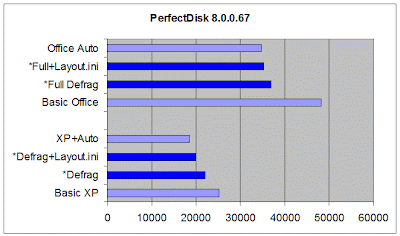
The graph shows PerfectDisk 8 (PD8) in dark blue, and the results from Windows XP in light blue. The first test is at the bottom, and shorter lines mean faster times.
  • "Basic XP" refers to the standard install, without Office 2007, so there are only 710 files to be tested.
  • "Defrag" refers to the read times of the same 710 files, after two defrag passes using the PD8 program, with no "Optimize Files" or "Optimize Boot" options enabled, allowing PD8 to manage the boot files itself (recommended). A 12% performance improvement is measured, not as good as the WDD result.
  • "Defrag+Layout.ini" refers to the read time after enabling "Optimize Files" and "Optimize Boot" functions in Windows, and the Windows LAYOUT.INI option in PD8. An improvement of 20.9% is recorded, still slower than WDD.
  • "XP+Auto" is the result obtained after enabling both "Optimize Files" and "Optimize Boot" functions in Windows, and then running WDD, i.e. the best that Windows XP can manage.
  • "Basic Office" refers to the read time of all 802 test files, where no defragmentation has been done whatsoever, after the installation of Microsoft Office 2007 Professional (Trial).
  • "Full Defrag" refers to the read time of all 802 test files after several reboots and two passes using the PD8 program, with no "Optimise Files" or "Optimize Boot" options enabled, using the "SMARTPlacement" defrag option, and allowing PD8 to manage the boot files itself (recommended). A 23.4% performance improvement has been measured, still 6.3% short of the "Office Auto" below.
  • "Full+Layout.ini" refers to the read time after enabling "Optimize Files" and "Optimize Boot" functions in Windows, and the Windows LAYOUT.INI option in PD8. This performance improvement of 26.8% is still 1.6% slower than "Office Auto".
  • "Office Auto" is the result obtained by allowing Windows XP to do its own defrag after enabling both "Optimize Files" and "Optimize Boot" functions.
The performance improvement ranges between 12% and 26%, with mixed results obtained when the built-in Windows functions are employed; "Optimize Boot" is enabled by default. Still, an average 20.8% performance improvement over no defrag at all is pretty good, better than DK2007's average and not far behind Diskeeper 2008 Pro Premier, which is $60 more expensive.
Here is a picture of the drive before any defragmentation was done. Compare this with the top picture, which is the end result of the "Full Defrag" step. PD8's main strength is its ability to organise the files using its "SMARTPlacement" method.
Even though faster read times were obtained using both the "Optimize Files" and "Optimize Boot" options available in Windows, the "Optimize Files" option causes boot files to be moved away from the start of the disk, and is therefore not recommended.
Notice how the purple startup files are scattered around the disk if you choose the "Let Windows manage the layout.ini files" option. Over time this will get worse, not better, and the small performance gain at startup will be lost.
PD8's boot time defrag is highly effective at defragmenting critical system files and metadata, but it would seem that the "SMARTPlacement" method is not as effective at fast startup read times as some of the other methods available, even if it does manage to organise the files in an effective manner. Further tests will tell how PD8 and other defraggers fare with data files and prolonged use.
I have started testing JkDefrag and will publish these results next.

Saturday, November 24, 2007

Benchmarks*: O&O Defrag Professional Edition 10.0.1634

O&O Defrag Professional Edition is a $44.95 product from Germany, and is well engineered, with a boot-time defrag, a configuration wizard, a screen saver, manual and automatic defrag options. You can find a review of version 10 and the results of the latest benchmarks, where it outperformed the best defrag that Windows could offer by 6.1%, and performed 25% better than a system with no defrag at all.
The graph shows O&O Defrag Professional Edition (ODP) in dark blue, and the results from Windows XP in light blue. The magenta lines refer to additional options available in ODP. The first test is at the bottom, and shorter lines mean faster times. After answering the setup wizard questions, ODP defaulted to its "SPACE" defrag option.
  • "Basic XP" refers to the standard install, without Office 2007, so there are only 710 files to be tested.
  • "Defrag" refers to the read times of the same 710 files, after several defrag passes using the ODP program, with no "Optimize Files" or "Optimize Boot" options enabled. A 3.2% performance improvement is measured, not as good as the WDD result.
  • "Defrag+Auto" refers to the read time after enabling "Optimize Boot" functions in Windows, and the LAYOUT.INI option in ODP. An improvement of 23.0% is recorded, still slower than WDD.
  • "XP+Auto" is the result obtained after enabling both "Optimize Files" and "Optimize Boot" functions in Windows, and then running WDD, i.e. the best that Windows XP can manage.
  • "Basic Office" refers to the read time of all 802 test files, where no defragmentation has been done whatsoever, after the installation of Microsoft Office 2007 Professional (Trial).
  • "Full Defrag" refers to the read time of all 802 test files after several reboots and several passes using the ODP program, with no LAYOUT.INI or "Optimize Boot" options enabled, using the "SPACE" defrag option. A 32.3% performance improvement has been measured, the best result so far, and 6.1% better than "Office Auto" below.
  • "Defrag+Boot" is the result obtained after enabling and "Optimize Boot" functions in Windows, and then running ODP with LAYOUT.INI support enabled . This performance improvement of 29.9% is still 2.7% better than "Office Auto".
  • "/Name" is the result obtained after enabling and "Optimize Boot" functions in Windows, and then running ODP with the "COMPLETE/Name" defrag option. This performance improvement of 31.3% is 4.8% better than "Office Auto".
  • "/Modified" is the result obtained after enabling and "Optimize Boot" functions in Windows, and then running ODP with the "COMPLETE/Modified" defrag option. This performance improvement of 28.0% is about the same as "Office Auto".
  • "/Access" is the result obtained after enabling and "Optimize Boot" functions in Windows, and then running ODP with the "COMPLETE/Name" defrag option. This performance improvement of 29.7% is 2.5% better than "Office Auto".
  • "Office Auto" is the result obtained by allowing Windows XP to do its own defrag after enabling both "Optimize Files" and "Optimize Boot" functions.
The performance improvement ranges between 3% and 32%, with mixed results obtained when the built-in Windows functions are employed; "Optimize Boot" is enabled by default. Still, an average 25.3% performance improvement over no defrag at all is pretty good, and a 6.1% improvement over WDD is what one would expect from a third party application. I get the feeling that as the drive gets fuller, the difference between ODP and WDD performance will increase, as the abilities of O&O Defrag become more apparent.