Showing posts with label Fonts. Show all posts

Saturday, October 14, 2023

Clarion Fixer (Part 1): Using the App

One of my pet peeves with Clarion is that the applications it generates by default look like they were written for Windows 95, and not for current versions of Windows. In modern versions of Windows, Microsoft has "fixed" the old look by making all the buttons and controls flat, but Clarion insists on using the "Microsoft Sans Serif" font that was introduced in 1997.
It looks old, especially since I have already used and discarded Verdana and Tahoma, for much the same reason. I never liked Arial (1982): it shipped with Windows 3.1 and has been severely over-used. "MS Sans Serif" is a bitmap font from a 1992 version of Windows. I want my programs to look like they were written recently, not 30 years ago.
My first attempt at fixing the fonts in my application didn't work. I was trying to fix things in the wrong place. But I later discovered that I could use a file utility called Search and Replace to fix the Clarion styles and templates. So when I create the app, I don't have to waste time fixing up fonts all over the place. This got me thinking: can't I automate this? Whenever I install new or updated accessories for Clarion, I don't want to have to fix up the fonts yet again.
Introducing clFixer, which is freeware. It's not signed, and some anti-virus engines on VirusTotal think it's a trojan, but I think they are getting false positives. Naturally, it is written with Clarion 11.1, and uses the CapeSoft StringTheory 3 ($97) and WinEvent 5 ($169) accessories. If you have those, you can download and modify the code here. The .rar file doesn't contain any exe or dll files. The zip file contains those. If not, you can read the code in the module files. Extract the zip file into a suitable folder to try it out. The code is also available on GitHub.
The first thing you need to do is make a copy of your Clarion folder, so you can see what changes have been made, and how they work. I have copied mine to "d:\Clarion11.1pe".

Exploring clFixer

Run the clFixer app, and from the main menu choose "Data"  -> "Application Settings".
Click on the ellipse to the right of the "Root Folder" field:
Select the backup folder and click "OK". Note there is a list of "Exclude Files". Some changes, such as the "Courier New" change, will cause trouble in the PDF related files, so you can decide whether a particular action must avoid modifying these files. Click "OK".
From the "Data" menu, select "Replacement Actions". This is a list of actions to be performed on the files. All of these replacement actions are performed on files in the "Root Folder" and subfolders, matching the file name extensions
*.inc;*.clw;*.txa;*.dctx;*.def;*.equ;*.tpl;*.tft;*.tpw;*.red;
If you add an action to modify "readme.txt" it will not be modified because "*.txt" is not one of the file name extensions listed.

General Actions

Here is the first and one of the most generic actions. It applies to all files, except a small number on the "Exclude Files" list.
This is even more general because it applies to the excluded files as well as any other file that still mentions "MS Sans Serif".

Specific Actions

This action is specific to one file, and fixes up a form where the font names wrapped around over 2 lines.
This action is specific to the TFT extension only. It fixes a general replacement from "Arial" to "Segoe UI" intended for forms, and changes the font to "Calibri" for a setting to do with reports. If you use a wild card like this in the file name, be sure to omit the ";" after the wild card, and use only one file name. The software isn't expecting multiple file names in this field.

Line-Based actions

Sometimes a search and replace across an entire file is not what we had in mind, and can cause havoc. Here is an example. The term "#SHEET,HScroll" appears in multiple places, so I only want to change this specific one. Note that I have included the first part of the next line as well, to prevent the same replacement happening again if the file is scanned more than once.
Here is another example of a line-based replacement. You may wish to disable it altogether because your IDE font settings will specify the font anyway if you have them set as follows:

Running the Changes

From the "Data" menu, select "Main Dashboard" to view all the settings. Then click on "Process the Files" to read the file structure and make the changes. Most of the work is now being done by StringTheory and the process is pretty fast. When done, there is a file canned "clFixer.txt" in the root folder, which is automatically opened for you. This lists all the files affected by changes.

Checking the Changes

It's important to check the changes, especially if you have added in new ones. before clFixer saves a changed file it checks to see if a "before" file exists. This is a file with the ".bf" added to the end. It's the original file that was renamed, and will still have the original date on it.
Here is a file comparison using the ExamDiff Pro utility, but there are others you may prefer. The original file is at the bottom, and the new file is at the top. It's important to do this because you don't want to screw up your actual working environment and have to reinstall things.
Once you apply the changes to your working environment, remember that none of your existing apps' forms and reports will have changed. Only new forms, reports and apps, and template-generated items will be affected by these changes.
Why not just pay CapeSoft $97 for their AnyFont product? My main objection is that this product allows the user to make bad font choices, and select something horrible like "Comic Sans". Horrors! Also, fonts have different widths and spacing, and I don't want text in Verdana to be truncated because someone is trying to fit it into the space intended for Arial Narrow. Legibility is more important than style.
In the next part, we will take a look at some of the programming techniques (good and bad) used in this application.

Update 20 October 2023: Following feedback and further insignts from Geoff Robinson and ClarionHub, the download is updated to version 0.2


Friday, January 29, 2021

Windows 10, Microsoft 365 and Microsoft Store free fonts

Whenever I install a new version of Microsoft Windows, I am always intrigued by what new fonts are included. This started when I was creating websites and didn't want to rely on "Times" or "Helvetica" as the standard fonts available in web browsers like Netscape or IE. So it helped to know what fonts would be available on most Windows PCs.
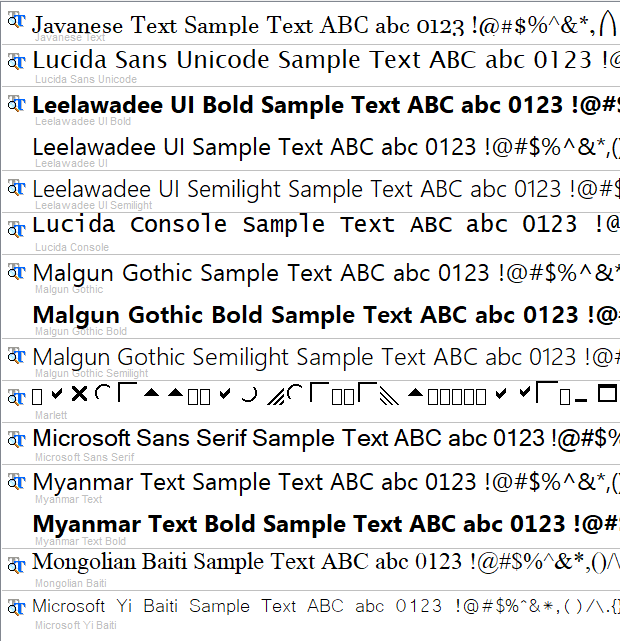
Currently Windows 10 includes 149 fonts, excluding bitmap ones. This is a far cry from just Arial, Courier, Times New Roman and Symbol that were the TrueType fonts in Windows 3.1. I have shown the Windows XP fonts in bold, which is uselful if you want to ensure that all current Windows users can display the font. Language specific fonts are shown in italics. Here is the current list for Windows 10 20H2:
Arial
Arial Bold
Arial Bold Italic
Arial Italic
Arial Black

Arial Black Italic
Bahnschrift
Calibri
Calibri Bold
Calibri Bold Italic
Calibri Italic
Calibri Light
Calibri Light Italic
Cambria
Cambria Bold
Cambria Bold Italic
Cambria Italic
Candara
Candara Bold
Candara Bold Italic
Candara Italic
Candara Light
Candara Light Italic
Comic Sans MS
Comic Sans MS Bold

Comic Sans MS Bold Italic
Comic Sans MS Italic
Consolas
Consolas Bold
Consolas Bold Italic
Consolas Italic
Constantia
Constantia Bold
Constantia Bold Italic
Constantia Italic
Corbel
Corbel Bold
Corbel Bold Italic
Corbel Italic
Corbel Light
Corbel Light Italic
Courier New
Courier New Bold
Courier New Bold Italic
Courier New Italic

Ebrima
Ebrima Bold

Franklin Gothic Medium
Franklin Gothic Medium Italic

Gabriola
Gadugi
Gadugi Bold

Georgia
Georgia Bold
Georgia Bold Italic
Georgia Italic

HoloLens MDL2 Assets (icons)
Impact
Ink Free
Javanese Text
Leelawadee UI
Leelawadee UI Bold
Leelawadee UI Semilight

Lucida Console
Lucida Sans Unicode
Malgun Gothic
Malgun Gothic Bold
Malgun Gothic Semilight

Marlett (icons)
Microsoft Himalaya
Microsoft Microsoft JhengHei
Microsoft Microsoft JhengHei Light
Microsoft Microsoft JhengHei Bold
Microsoft Microsoft JhengHei UI
Microsoft Microsoft JhengHei UI Light
Microsoft Microsoft JhengHei UI Bold
Microsoft New Tai Lue
Microsoft New Tai Lue Bold
Microsoft PhagsPa
Microsoft PhagsPa Bold

Microsoft Sans Serif
Microsoft Tai Le
Microsoft Tai Le Bold
Microsoft YaHei
Microsoft YaHei Bold
Microsoft YaHei Light
Microsoft YaHei UI
Microsoft YaHei UI Bold
Microsoft YaHei UI Light
Microsoft Yi Baiti
MingLiU-ExtB
Mongolian Baiti
MS Gothic
MS PGothic
MS UI Gothic

MV Boli
Myanmar Text
Myanmar Text Bold
Nirmala UI
Nirmala UI Bold
Nirmala UI Semilight

Palatino Linotype
Palatino Linotype Bold
Palatino Linotype Bold Italic
Palatino Linotype Italic

Segoe MDL2 Assets (icons)
Segoe Print
Segoe Print Bold
Segoe Script
Segoe Script Bold
Segoe UI
Segoe UI Black
Segoe UI Black Italic
Segoe UI Bold
Segoe UI Bold Italic
Segoe UI Italic
Segoe UI Light
Segoe UI Light Italic
Segoe UI Semibold
Segoe UI Semibold Italic
Segoe UI Semilight
Segoe UI Semilight Italic
Segoe UI Emoji
Segoe UI Historic (hieroglyphics, etc)
Segoe UI Symbol
SimSun
NSimSun
SimSun-ExtB

Sitka Small
Sitka Small Italic
Sitka Small Bold
Sitka Small Bold Italic
Sitka Text
Sitka Text Italic
Sitka Text Bold
Sitka Text Bold Italic
Sitka Subheading
Sitka Subheading Italic
Sitka Subheading Bold
Sitka Subheading Bold Italic
Sitka Heading
Sitka Heading Italic
Sitka Heading Bold
Sitka Heading Bold Italic
Sitka Display
Sitka Display Italic
Sitka Display Bold
Sitka Display Bold Italic
Sitka Banner
Sitka Banner Italic
Sitka Banner Bold
Sitka Banner Bold Italic
Sylfaen
Symbol
Tahoma
Tahoma Bold

Times New Roman
Times New Roman Bold
Times New Roman Bold Italic
Times New Roman Italic

Trebuchet MS
Trebuchet MS Bold
Trebuchet MS Bold Italic
Trebuchet MS Italic

Verdana
Verdana Bold
Verdana Bold Italic
Verdana Italic

Webdings (icons)
Wingdings (icons)

Wingdings 2 (icons)
Wingdings 3 (icons)
Yu Gothic Light
Yu Gothic Regular
Yu Gothic Medium
Yu Gothic Bold
Yu Gothic UI Light
Yu Gothic UI Semilight
Yu Gothic UI Regular
Yu Gothic UI Semibold
Yu Gothic UI Bold
To install "Feature on Demand" font packages, select the Start button, and then select "Settings" > "Apps" > "Apps & features" > "Add an optional feature" and choose from various supplemental fonts. A reboot may be required. Here is the list:
Arabic Script (14 fonts)
Bangla Script (4 fonts)
Canadian Aboriginal Syllablics (1 font)
Cherokee (1 font)
Chinese (Simplified) (6 fonts)
Chinese (Traditional) (4 fonts)
Devangari (15 fonts)
Ethiopic (1 font)
Gujarati (2 fonts)
Gurmukhi
Hebrew (12 fonts)
Japanese (25 fonts)
Kannada (2 fonts)
Khumer (4 fonts)
Korean (8 fonts)
Lao (3 fonts)
Malayalam (2 fonts)
Odia (2 fonts)
Pan-European (88 fonts, including Arial Nova, Georgia Pro, Gill Sans Nova, Neue Haas Grotesk Text Pro, Rockwell Nova, and Verdana Pro families)
Sinhala (2 fonts)
Syriac (1 font)
Tamil (4 fonts)
Telugu (4 fonts)
Thai (54 fonts)
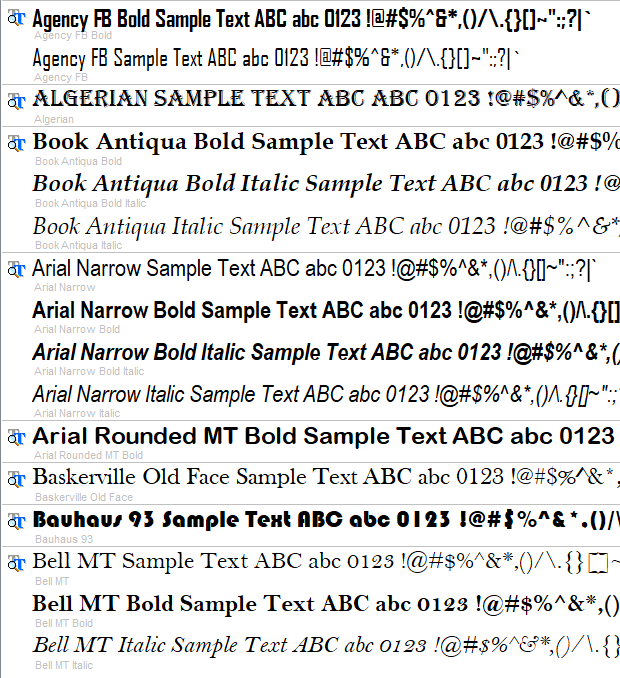
You may have noticed a whole lot more fonts. Indeed there are, if Microsoft 365 (Office) has been preinstalled, as it was in the standard Windows 10 20H2 installation ISO file for Windows 10 Home and Windows 10 Pro. I have shown the ones that are NOT also found in Office 2007 in bold. There are 219 office fonts:
Agency FB
Agency FB Bold
Algerian
Arial Narrow
Arial Narrow Bold
Arial Narrow Bold Italic
Arial Narrow Italic
Arial Rounded MT Bold
Baskerville Old Face
Bauhaus 93
Bell MT
Bell MT Bold
Bell MT Italic
Berlin Sans FB
Berlin Sans FB Bold
Berlin Sans FB Demi Bold
Bernard MT Condensed
Blackadder ITC
Bodoni MT
Bodoni MT Black
Bodoni MT Black Italic
Bodoni MT Bold
Bodoni MT Bold Italic
Bodoni MT Condensed
Bodoni MT Condensed Bold
Bodoni MT Condensed Bold Italic
Bodoni MT Condensed Italic
Bodoni MT Italic
Bodoni MT Poster Compressed
Book Antiqua
Book Antiqua Bold
Book Antiqua Bold Italic
Book Antiqua Italic
Bookman Old Style
Bookman Old Style Bold
Bookman Old Style Bold Italic
Bookman Old Style Italic
Bookshelf Symbol 7
Bradley Hand ITC
Britannic Bold
Broadway
Brush Script MT Italic
Calibri
Calibri Bold
Calibri Bold Italic
Calibri Italic
Calibri Light
Calibri Light Italic

Californian FB
Californian FB Bold
Californian FB Italic
Calisto MT
Calisto MT Bold
Calisto MT Bold Italic
Calisto MT Italic
Cambria
Cambria Bold
Cambria Bold Italic
Cambria Italic
Candara
Candara Bold
Candara Bold Italic
Candara Italic
Castellar
Centaur
Century
Century Gothic
Century Gothic Bold
Century Gothic Bold Italic
Century Gothic Italic
Century Schoolbook
Century Schoolbook Bold
Century Schoolbook Bold Italic
Century Schoolbook Italic
Chiller
Colonna MT
Consolas
Consolas Bold
Consolas Bold Italic
Consolas Italic
Constantia
Constantia Bold
Constantia Bold Italic
Constantia Italic
Cooper Black
Copperplate Gothic Bold
Copperplate Gothic Light
Corbel
Corbel Bold
Corbel Bold Italic
Corbel Italic
Curlz MT
Dubai Bold
Dubai Light
Dubai Medium
Dubai Regular

Edwardian Script ITC
Elephant
Elephant Italic
Engravers MT
Eras Bold ITC
Eras Demi ITC
Eras Light ITC
Eras Medium ITC
Felix Titling
Footlight MT
Forte
Franklin Gothic Book
Franklin Gothic Book Italic
Franklin Gothic Demi
Franklin Gothic Demi Cond
Franklin Gothic Demi Italic
Franklin Gothic Heavy
Franklin Gothic Heavy Italic
Franklin Gothic Medium Cond
Freestyle Script
French Script MT
Gabriola
Gadugi
Gadugi Bold

Garamond
Garamond Bold
Garamond Italic
Gigi
Gill Sans MT
Gill Sans MT Bold
Gill Sans MT Bold Italic
Gill Sans MT Condensed
Gill Sans MT Ext Condensed Bold
Gill Sans MT Italic
Gill Sans Ultra Bold
Gill Sans Ultra Bold Condensed
Gloucester MT Extra Condensed
Goudy Old Style
Goudy Old Style Bold
Goudy Old Style Italic
Goudy Stout
Haettenschweiler
Harlow Solid Italic
Harrington
High Tower Text
High Tower Text Italic
Imprint MT Shadow
Informal Roman
Jokerman
Juice ITC
Kristen ITC
Kunstler Script
Leelawadee
Leelawadee Bold

Lucida Bright
Lucida Bright Demibold
Lucida Bright Demibold Italic
Lucida Bright Italic
Lucida Calligraphy Italic
Lucida Fax Demibold
Lucida Fax Demibold Italic
Lucida Fax Italic
Lucida Fax Regular
Lucida Handwriting Italic
Lucida Sans Demibold Italic
Lucida Sans Demibold Roman
Lucida Sans Italic
Lucida Sans Regular
Lucida Sans Typewriter Bold
Lucida Sans Typewriter Bold Oblique
Lucida Sans Typewriter Oblique
Lucida Sans Typewriter Regular
Magneto Bold
Maiandra GD
Matura MT Script Capitals
Microsoft Uighur
Microsoft Uighur Bold

Mistral
Modern No. 20
Monotype Corsiva
MT Extra (symbols)
Niagara Engraved
Niagara Solid
Nirmala UI
Nirmala UI Bold
Nirmala UI Semilight

OCR A Extended
Old English Text MT
Onyx
Palace Script MT
Papyrus
Parchment
Perpetua
Perpetua Bold
Perpetua Bold Italic
Perpetua Italic
Perpetua Titling MT Bold
Perpetua Titling MT Light
Playbill
Poor Richard
Pristina
Rage Italic
Ravie
Rockwell
Rockwell Bold
Rockwell Bold Italic
Rockwell Condensed
Rockwell Condensed Bold
Rockwell Extra Bold
Rockwell Italic
Script MT Bold
Segoe UI
Segoe UI Bold
Segoe UI Bold Italic
Segoe UI Italic
Segoe UI Semilight
Showcard Gothic
Snap ITC
Stencil
Tempus Sans ITC
Tw Cen MT
Tw Cen MT Bold
Tw Cen MT Bold Italic
Tw Cen MT Condensed
Tw Cen MT Condensed Bold
Tw Cen MT Condensed Extra Bold
Tw Cen MT Italic
Viner Hand ITC
Vivaldi Italic
Vladimir Script
Wide Latin
I have left out some of the system-type fonts that consist of icons and symbols used internally by programs such as Outlook or OneNote. There are also "cloud fonts" which you can download. To get the cloud fonts, your device needs to be online and connected to the Internet. In apps running on Windows (such as Word), go to "File" > "Account", select "Manage Settings" under "Account Privacy", and turn on "Optional connected experiences". Clearing the check box turns off cloud fonts and other online services from Microsoft. This is helpful to de-clutter your font menu.
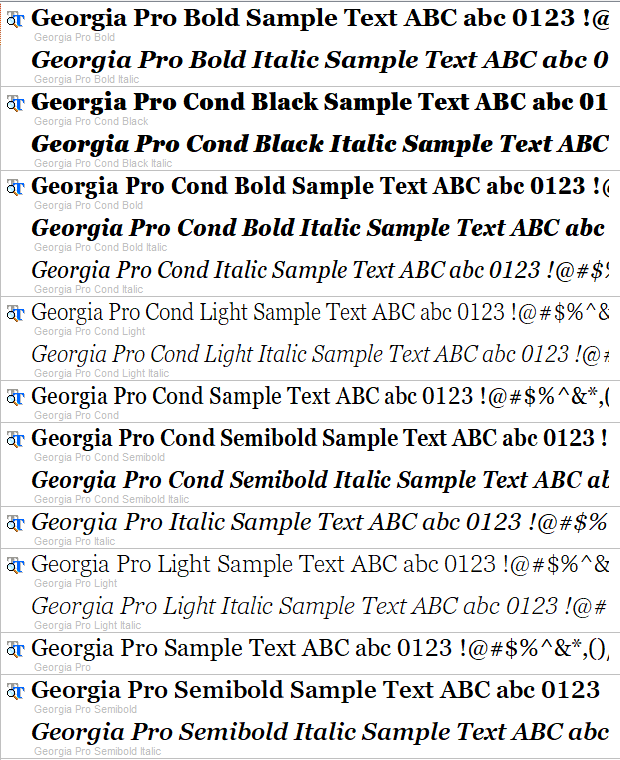
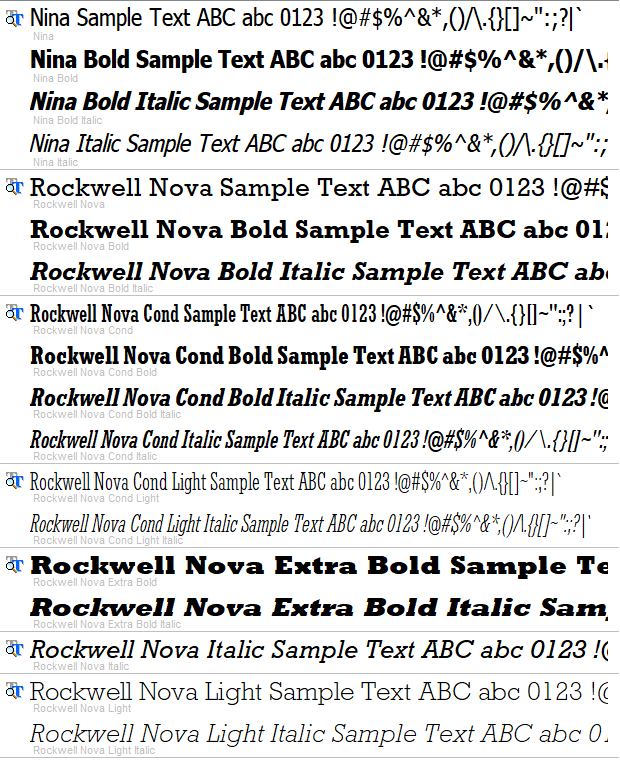
But wait, there's more! The Microsoft Store offers several additional fonts for free, in addition to some that are sold in the store. The free ones are:
Arial Nova
Arial Nova Bold
Arial Nova Bold Italic
Arial Nova Cond
Arial Nova Cond Bold
Arial Nova Cond Bold Italic
Arial Nova Cond Italic
Arial Nova Cond Light
Arial Nova Cond Light Italic
Arial Nova Italic
Arial Nova Light
Arial Nova Light Italic
Convection
Convection Bold
Convection Condensed
Convection Extra Bold
Convection Italic
Convection Medium
Georgia Pro
Georgia Pro Black
Georgia Pro Black Italic
Georgia Pro Bold
Georgia Pro Bold Italic
Georgia Pro Cond
Georgia Pro Cond Black
Georgia Pro Cond Black Italic
Georgia Pro Cond Bold
Georgia Pro Cond Bold Italic
Georgia Pro Cond Italic
Georgia Pro Cond Light
Georgia Pro Cond Light Italic
Georgia Pro Cond Semibold
Georgia Pro Cond Semibold Italic
Georgia Pro Italic
Georgia Pro Light
Georgia Pro Light Italic
Georgia Pro Semibold
Georgia Pro Semibold Italic
Gill Sans Nova
Gill Sans Nova Bold
Gill Sans Nova Bold Italic
Gill Sans Nova Cond
Gill Sans Nova Cond Bold
Gill Sans Nova Cond Bold Italic
Gill Sans Nova Cond Italic
Gill Sans Nova Cond Lt
Gill Sans Nova Cond Lt Italic
Gill Sans Nova Cond Ultra Bold
Gill Sans Nova Cond XBd
Gill Sans Nova Cond XBd Italic
Gill Sans Nova Italic
Gill Sans Nova Light
Gill Sans Nova Light Italic
Gill Sans Nova Ultra Bold
Ink Draft
Ink Journal
Nina
Nina Bold
Nina Bold Italic
Nina Italic
Rockwell Nova
Rockwell Nova Bold
Rockwell Nova Bold Italic
Rockwell Nova Cond
Rockwell Nova Cond Bold
Rockwell Nova Cond Bold Italic
Rockwell Nova Cond Italic
Rockwell Nova Cond Light
Rockwell Nova Cond Light Italic
Rockwell Nova Extra Bold
Rockwell Nova Extra Bold Italic
Rockwell Nova Italic
Rockwell Nova Light
Rockwell Nova Light Italic
Verdana Pro
Verdana Pro Black
Verdana Pro Black Italic
Verdana Pro Bold
Verdana Pro Bold Italic
Verdana Pro Cond
Verdana Pro Cond Black
Verdana Pro Cond Black Italic
Verdana Pro Cond Bold
Verdana Pro Cond Bold Italic
Verdana Pro Cond Italic
Verdana Pro Cond Light
Verdana Pro Cond Light Italic
Verdana Pro Cond Semibold
Verdana Pro Cond Semibold Italic
Verdana Pro Italic
Verdana Pro Light
Verdana Pro Light Italic
Verdana Pro Semibold
Verdana Pro Semibold Italic
These font listings were compiled with the help of Typograf, a very useful font management program. You can use it to "Unload" fonts as well as Uninstall them. There are a lot of fonts that are clearly intended for specific languages that I have unloaded. Typograf shows the fonts in filename order by default, which explains why some of the font images appear to be in a different order to the font list.
Microsoft has published several explanations about its fonts, as well as a list of fonts for Windows 10. It also has an explanation of each font's background and purpose. Remember if you are using optional or downloaded fonts that if you send a document to someone else, or use the font in an email, the person who receives it won't see the font correctly unless they also have it installed. To avoid this problem, export the document as a PDF or embed the fonts in the document. PDF is better: it preserves all the formatting and spacing correctly, as well as embedding the fonts you used.
Update Monday 1 Feb 2021: I have found this useful article about deleting fonts. As a result, I created the following registry file to remove the "foreign" fonts that I don't use.
Windows Registry Editor Version 5.00

[HKEY_LOCAL_MACHINE\SOFTWARE\Microsoft\Windows NT\CurrentVersion\Fonts]
"Dubai Bold (TrueType)"=-
"Dubai Light (TrueType)"=-
"Dubai Medium (TrueType)"=-
"Dubai Regular (TrueType)"=-
"Ebrima (TrueType)"=-
"Ebrima Bold (TrueType)"=-
"Gadugi (TrueType)"=-
"Gadugi Bold (TrueType)"=-
"Javanese Text (TrueType)"=-
"Leelawadee UI (TrueType)"=-
"Leelawadee UI Bold (TrueType)"=-
"Leelawadee UI Semilight (TrueType)"=-
"Malgun Gothic (TrueType)"=-
"Malgun Gothic Bold (TrueType)"=-
"Malgun Gothic SemiLight (TrueType)"=-
"Microsoft Himalaya (TrueType)"=-
"Microsoft JhengHei & Microsoft JhengHei UI (TrueType)"=-
"Microsoft JhengHei Bold & Microsoft JhengHei UI Bold (TrueType)"=-
"Microsoft JhengHei Light & Microsoft JhengHei UI Light (TrueType)"=-
"Microsoft New Tai Lue (TrueType)"=-
"Microsoft New Tai Lue Bold (TrueType)"=-
"Microsoft PhagsPa (TrueType)"=-
"Microsoft PhagsPa Bold (TrueType)"=-
"Microsoft Tai Le (TrueType)"=-
"Microsoft Tai Le Bold (TrueType)"=-
"Microsoft YaHei & Microsoft YaHei UI (TrueType)"=-
"Microsoft YaHei Bold & Microsoft YaHei UI Bold (TrueType)"=-
"Microsoft YaHei Light & Microsoft YaHei UI Light (TrueType)"=-
"Microsoft Yi Baiti (TrueType)"=-
"MingLiU-ExtB & PMingLiU-ExtB & MingLiU_HKSCS-ExtB (TrueType)"=-
"Mongolian Baiti (TrueType)"=-
"MS Gothic & MS UI Gothic & MS PGothic (TrueType)"=-
"MV Boli (TrueType)"=-
"Myanmar Text (TrueType)"=-
"Myanmar Text Bold (TrueType)"=-
"Nirmala UI (TrueType)"=-
"Nirmala UI Bold (TrueType)"=-
"Nirmala UI Semilight (TrueType)"=-
"SimSun & NSimSun (TrueType)"=-
"SimSun-ExtB (TrueType)"=-
"Yu Gothic Bold & Yu Gothic UI Semibold & Yu Gothic UI Bold (TrueType)"=-
"Yu Gothic Light & Yu Gothic UI Light (TrueType)"=-
"Yu Gothic Medium & Yu Gothic UI Regular (TrueType)"=-
"Yu Gothic Regular & Yu Gothic UI Semilight (TrueType)"=-

[HKEY_LOCAL_MACHINE\SOFTWARE\WOW6432Node\Microsoft\Windows NT\CurrentVersion\Fonts]
"Dubai Bold (TrueType)"=-
"Dubai Light (TrueType)"=-
"Dubai Medium (TrueType)"=-
"Dubai Regular (TrueType)"=-
"Ebrima (TrueType)"=-
"Ebrima Bold (TrueType)"=-
"Gadugi (TrueType)"=-
"Gadugi Bold (TrueType)"=-
"Javanese Text (TrueType)"=-
"Leelawadee UI (TrueType)"=-
"Leelawadee UI Bold (TrueType)"=-
"Leelawadee UI Semilight (TrueType)"=-
"Malgun Gothic (TrueType)"=-
"Malgun Gothic Bold (TrueType)"=-
"Malgun Gothic SemiLight (TrueType)"=-
"Microsoft Himalaya (TrueType)"=-
"Microsoft JhengHei & Microsoft JhengHei UI (TrueType)"=-
"Microsoft JhengHei Bold & Microsoft JhengHei UI Bold (TrueType)"=-
"Microsoft JhengHei Light & Microsoft JhengHei UI Light (TrueType)"=-
"Microsoft New Tai Lue (TrueType)"=-
"Microsoft New Tai Lue Bold (TrueType)"=-
"Microsoft PhagsPa (TrueType)"=-
"Microsoft PhagsPa Bold (TrueType)"=-
"Microsoft Tai Le (TrueType)"=-
"Microsoft Tai Le Bold (TrueType)"=-
"Microsoft YaHei & Microsoft YaHei UI (TrueType)"=-
"Microsoft YaHei Bold & Microsoft YaHei UI Bold (TrueType)"=-
"Microsoft YaHei Light & Microsoft YaHei UI Light (TrueType)"=-
"Microsoft Yi Baiti (TrueType)"=-
"MingLiU-ExtB & PMingLiU-ExtB & MingLiU_HKSCS-ExtB (TrueType)"=-
"Mongolian Baiti (TrueType)"=-
"MS Gothic & MS UI Gothic & MS PGothic (TrueType)"=-
"MV Boli (TrueType)"=-
"Myanmar Text (TrueType)"=-
"Myanmar Text Bold (TrueType)"=-
"Nirmala UI (TrueType)"=-
"Nirmala UI Bold (TrueType)"=-
"Nirmala UI Semilight (TrueType)"=-
"SimSun & NSimSun (TrueType)"=-
"SimSun-ExtB (TrueType)"=-
"Yu Gothic Bold & Yu Gothic UI Semibold & Yu Gothic UI Bold (TrueType)"=-
"Yu Gothic Light & Yu Gothic UI Light (TrueType)"=-
"Yu Gothic Medium & Yu Gothic UI Regular (TrueType)"=-
"Yu Gothic Regular & Yu Gothic UI Semilight (TrueType)"=-
Copy and paste these registry commands into a text file and save it with a .reg extension. Run it and reboot the PC. All the fonts listed here will no longer show up in your font menus. The second half of this file is for 64-bit systems.